How to Monitor SSL Certificate Expiration: Step-by-Step Setup
TL;DR
Add your HTTPS URL to PingPing, set alert thresholds (14, 7, 3, or 1 day before expiry), and configure at least two notification channels. Takes under five minutes, no server access needed. Certificates run half as long as they did last year, so the threshold you picked back then is probably due a rethink.
Quick answer
To monitor SSL certificate expiration, add your domain to a monitoring tool like PingPing, set your alert threshold (14, 7, 3, 1 day(s) before expiry or at expiry), then setup at least two notification channels from email, SMS, Slack, or webhooks. PingPing checks your certificate daily and sends SSL certificate expiration alerts well in advance, so you can renew before browsers start showing security warnings to your visitors.
What shrinking certificate lifetimes mean for SSL expiry monitoring
CA/Browser Forum ballot SC-081v3 caps public TLS certificates at 200 days as of March 15, 2026. In March 2027 that becomes 100 days, and in March 2029 it becomes 47. Every drop means more renewals per year, and a threshold you set back when certificates lasted 398 days will start firing far too early.
| Effective date | Maximum certificate lifetime | Domain validation reuse |
|---|---|---|
| Until March 15, 2026 | 398 days | 398 days |
| March 15, 2026 | 200 days | 200 days |
| March 15, 2027 | 100 days | 100 days |
| March 15, 2029 | 47 days | 10 days |
The right-hand column is the one that gets overlooked. Domain validation reuse is how long a CA can lean on an earlier check that you control the domain before it has to verify again. At 10 days, near enough every renewal drags a fresh validation along with it. One stale DNS record, one firewall rule nobody remembers adding, and the renewal that should have been invisible isn’t.
Commercial CAs have already moved. DigiCert has been handing out 199-day certificates since February 2026, sitting just under the cap. Let’s Encrypt still defaults to 90 days, and since January 2026 there’s an opt-in profile called shortlived with 160 hours of validity. A bit over six days. Run that and renewal happens every few days, with nobody watching it happen.
Count it up for your own domains. Something you renewed once a year in 2025 needs doing twice this year, four times or so in 2027, eight times in 2029. Then multiply by however many hostnames you serve. Plenty of teams still keep expiry dates in a spreadsheet, and that spreadsheet quietly stops working somewhere in the middle of that table.
Which changes what the alert is for. On a domain with ACME set up properly, the certificate should have renewed itself well before your threshold comes round. So if the alert does fire, something upstream broke, and you’ve got days rather than months to find it.
What you need before you start
Setting up SSL certificate expiry monitoring takes under five minutes. Here’s the short list:
- A public HTTPS website or API endpoint (PingPing connects to port 443 by default)
- The domain name you want to track (just the URL, no certificate files to upload)
- A PingPing account (a free 14-day trial covers everything you need to follow this guide)
- An email address, Slack workspace, or phone number for alerts
You don’t need server access. You don’t need to install anything. You don’t need to touch your web server config. SSL monitoring works the same way a browser does: it opens a TLS handshake, reads the certificate chain, and inspects what’s there.
Step-by-step: monitor SSL certificate expiration in PingPing
Step 1: Add your website to PingPing
Open the PingPing dashboard and click Add website. Paste your full URL, including https://, and give it a name you’ll actually recognize later. “Marketing site.” “Production API.” Whatever helps when you’re scanning a list of 20 monitors at 2am.
Hit save. That’s the whole step.

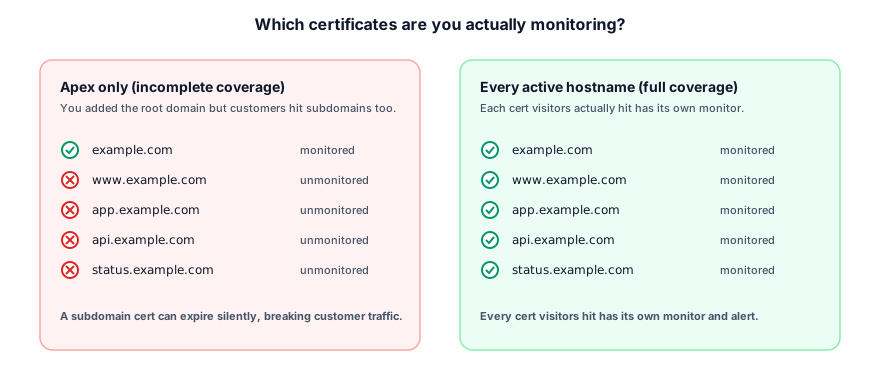
What goes wrong: People sometimes paste an HTTP URL by mistake (http://example.com). PingPing will still monitor it for uptime, but there’s no SSL certificate to check on plain HTTP. Make sure the protocol is https://. Also double-check the host. If your site is www.example.com, monitoring just example.com means the apex domain’s certificate gets checked, which might or might not be the one your visitors actually hit. When in doubt, add both.
Step 2: Confirm SSL monitoring is enabled
PingPing turns on SSL monitoring automatically when it detects an HTTPS endpoint. You don’t need to flip a switch. Still, check the monitor’s line on the dashboard and verify the SSL section shows green.
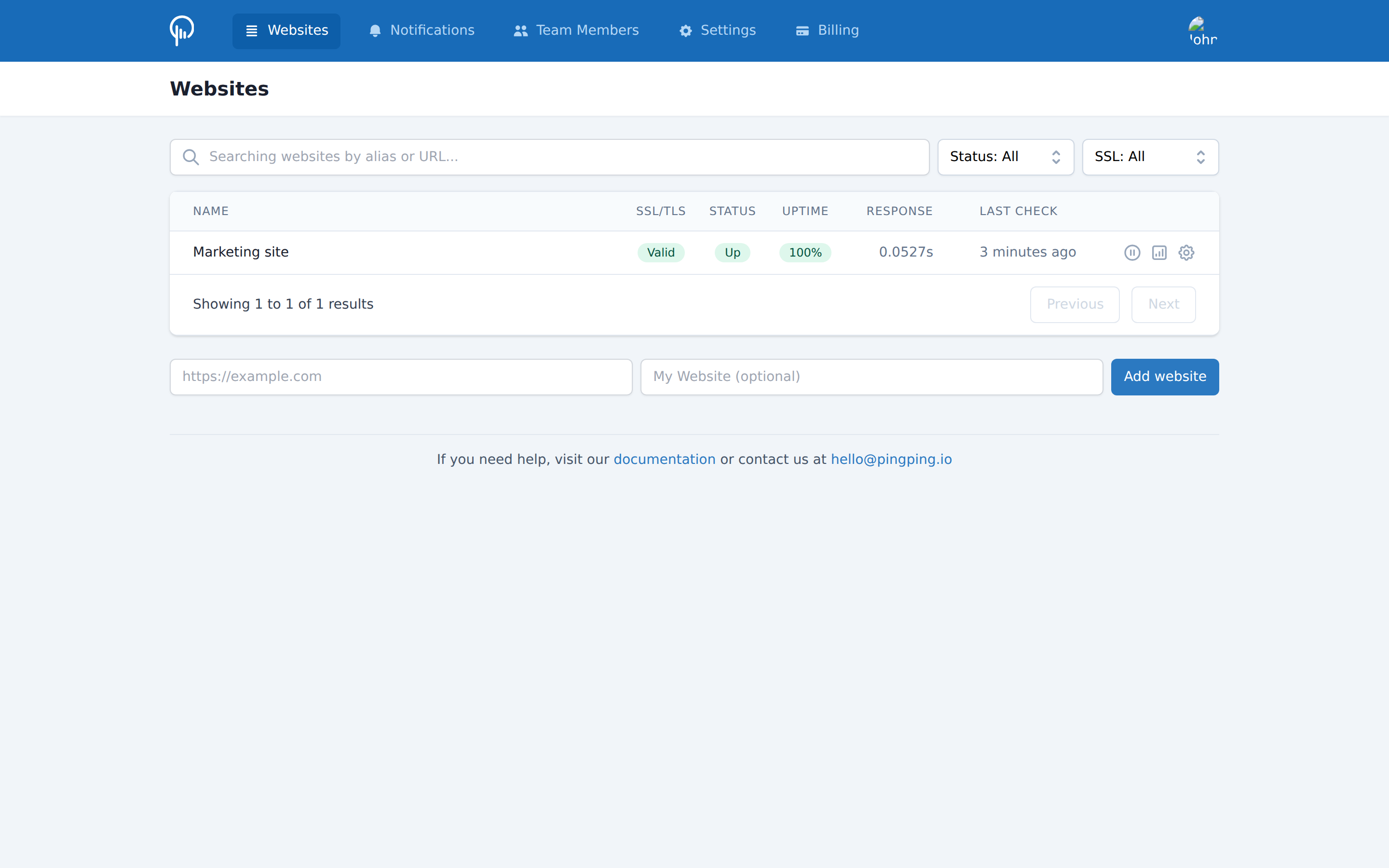
If you click on the Statuspage icon for your monitor (the little graph icon), and hover over the SSL Certificate status, you’ll see the certificate’s current expiry date, the issuer (Let’s Encrypt, Sectigo, DigiCert, GoDaddy, whoever), and algorithm used. If anything looks off here on day one, fix it before you continue. There’s no point setting up expiry alerts on a certificate that’s already misconfigured.

Step 3: Set your expiration alert threshold
This is the most important part of the setup, and it’s the part most people get wrong by configuring it once and never revisiting.
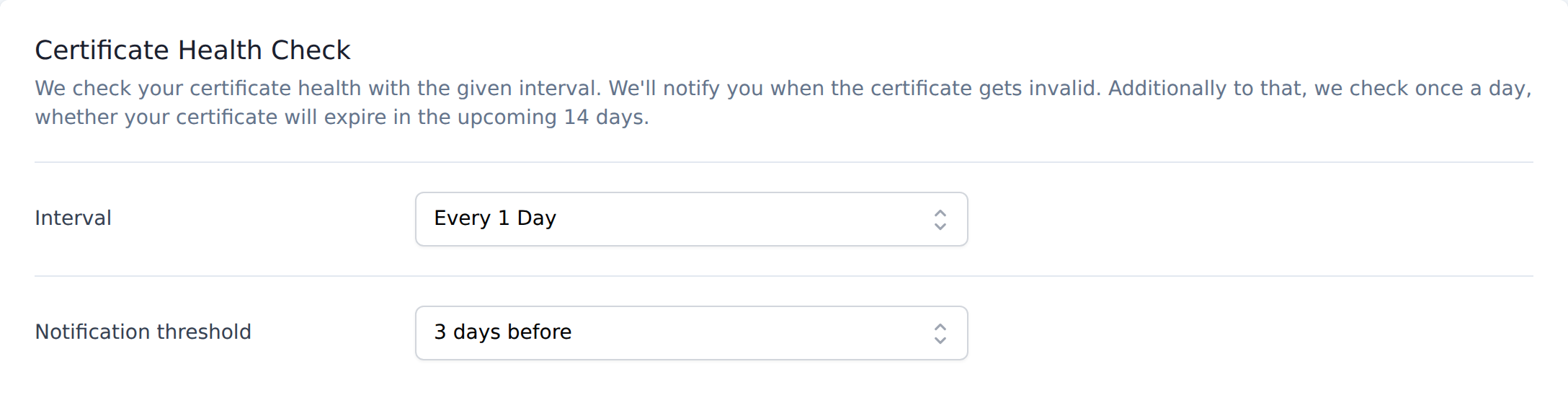
In the monitor’s settings, you’ll see a Certificate Health Check block. threshold options: 14 days, 7 days, 3 days, 1 day before expiry or only at expiry. Pick the one that matches how you actually renew certificates.
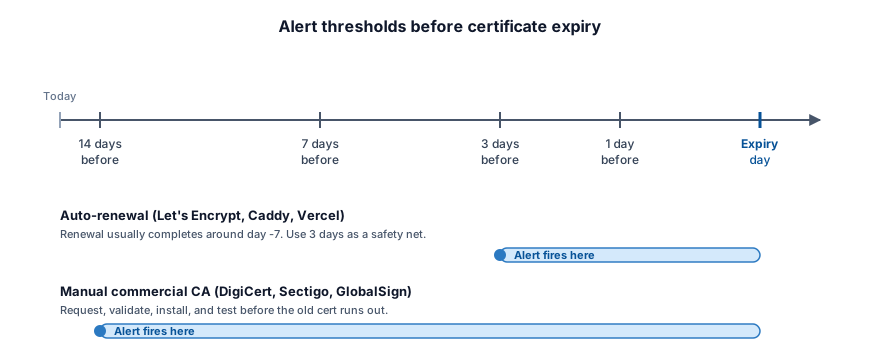
Here’s how I’d think about it:
- Auto-renewal in place (Let’s Encrypt via certbot, Caddy, Cloudflare, Vercel, Netlify, most modern hosts): 3 days is fine. Certbot renews once fewer than 30 days remain on a 90-day certificate, so the cert should have rotated weeks before your alert window even opens. If you do get that 3-day alert, the automation has been quietly failing for about a month.
- Manual renewals through a commercial CA like DigiCert, Sectigo, or GlobalSign: go with 14 days so you have time to request, validate, install, and test before the old cert runs out. Those certificates run 199 days now, so it comes round twice a year.
- Mixed environments where you manage some certs and a hosting provider handles others: set 14 days for the manual ones and 7 days for the automated ones. Different thresholds per monitor is the point.
Whatever number you land on should track how long the certificate actually lives. Fourteen days of warning on a 199-day certificate spends about 7% of its life, which leaves a comfortable margin. Put that same 14 days on a 47-day certificate in 2029 and it fires while nearly a third of the certificate is still perfectly good. By the third alert that felt premature you’ll have stopped reading them. Rough guide: 14 days for the 199-day certificates commercial CAs issue today, 7 days once 100-day certificates land in March 2027, and 3 or 1 day for the 47-day era and for anything that renews itself.
If you’re on a small team where one person handles infrastructure, set the threshold longer than you think you need. The day your cert is about to expire is always the day you’re on vacation or stuck on a delayed train.
Step 4: Configure your notification channels
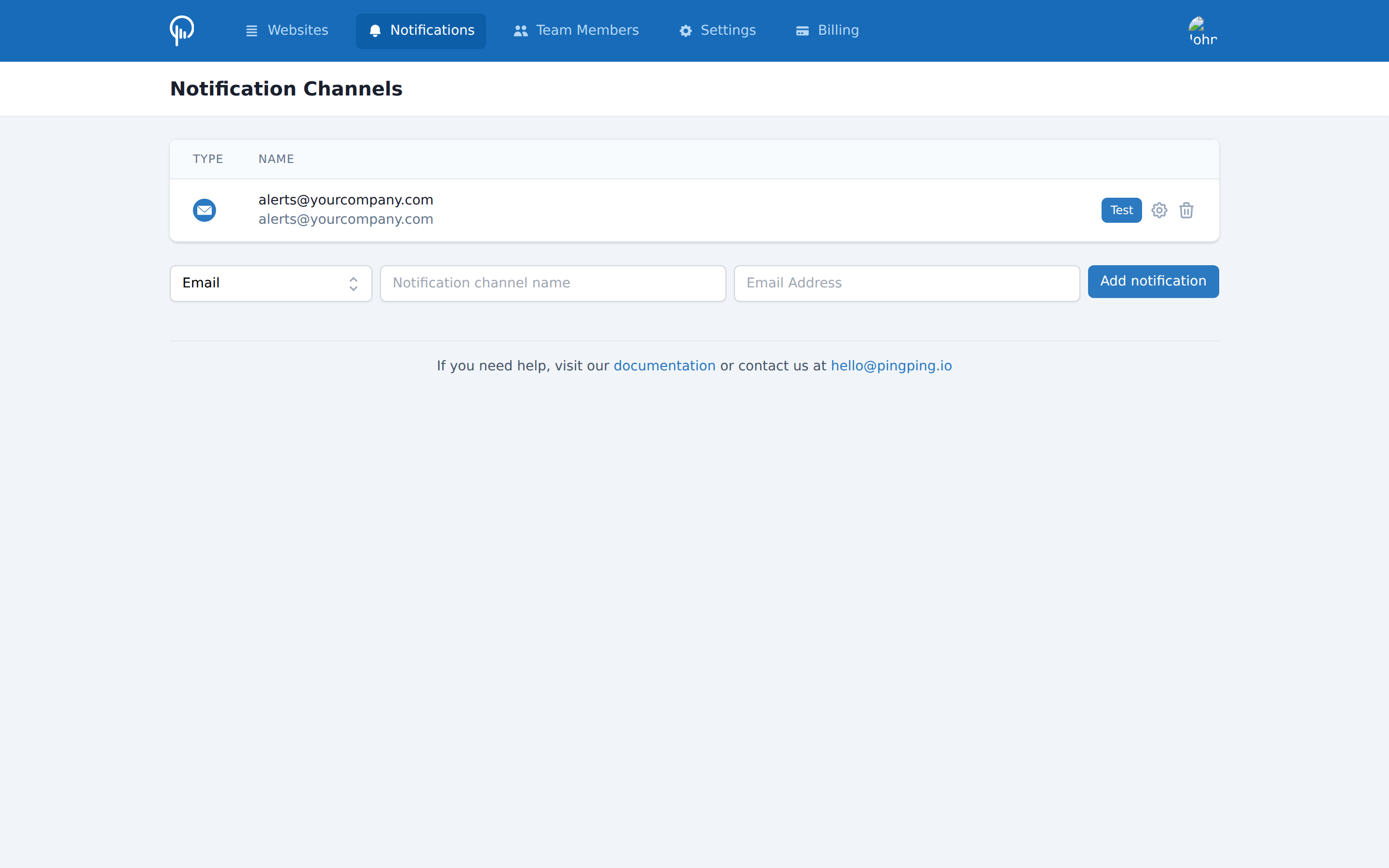
PingPing supports multiple notification channels for SSL alerts: email, SMS, Slack, Discord, Telegram and webhooks. Pick at least two. The one time your certificate actually expires will be the one time you didn’t check your email.
A setup that works well for most small teams:
- Email to a shared inbox like
alerts@yourcompany.comso anyone on the team can see and acknowledge it. - Slack channel dedicated to alerts. Don’t put SSL alerts in
#general(they get lost). Create#monitoringor#alertsand route everything there. - SMS to one person on-call for revenue-critical sites. SMS is the channel you can’t ignore, so save it for production where an outage actually costs you.
- Webhook to your incident management tool (PagerDuty, Opsgenie, BetterStack, Zapier) if you have one. The webhook payload includes the certificate’s expiry date, the domain, and the issuer, so you can route alerts based on those fields.
To add a channel, open Notifications in your PingPing account, click Add notification, pick the type, and authenticate or paste your details. For Discord and Slack, you’ll provide the webhook. For Telegram you provide the channel name. For webhooks, paste the receiver URL; PingPing handles retries and request signing if you turn signing on.
Step 5: Test the alert before you trust it
This is the step almost everyone skips and later regrets. Trigger a test alert from the notifications panel. Make sure the email lands in your inbox (and isn’t sitting in spam, which happens more than you’d expect with noreply@ senders). Verify the Slack message shows up in the right channel. Confirm your phone got the SMS.
If you use a webhook, check that your receiver actually parsed the payload correctly. PingPing sends a structured JSON body; make sure your downstream system reads the right fields.
Once you’ve seen a test alert hit every channel you configured, setup is done. PingPing now runs daily SSL certificate expiry monitoring on this domain alongside its 30-second uptime checks.
What to do when an SSL expiration alert fires
You got the alert. The countdown started. Here’s the order of operations.
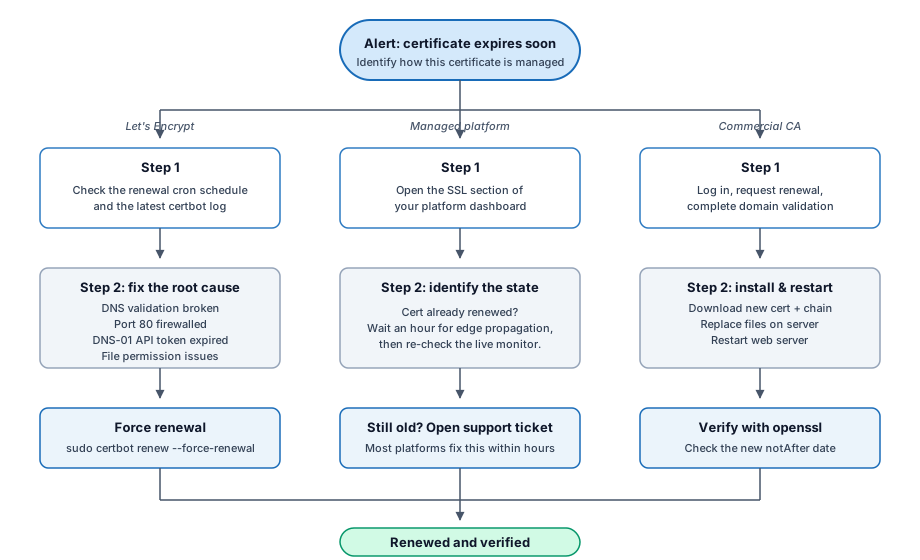
First, work out what the alert is actually telling you. On a domain that renews automatically, the certificate should have been swapped out days or weeks ago. So the alert firing at all means a renewal you assumed had happened didn’t. Go looking for the broken pipeline before you go looking for a renew button.
If you’re on Let’s Encrypt with auto-renewal, log into the host that runs the renewal job. Check the systemd timer or cron schedule (certbot renew should run twice a day on most setups) and read the most recent log. Renewals typically fail for a few reasons: DNS validation broke after a domain change, port 80 got firewalled so HTTP-01 can’t complete, the renewal script is running without the file permissions it needs, or the DNS provider API token used for DNS-01 expired. Fix the root cause, then force a renewal manually with sudo certbot renew --force-renewal.
Watch out for one of these in particular, because it hides from the log you’d naturally check. The renewal works. A new certificate lands on disk. And nginx carries on serving the old one out of memory, because nothing ever told it to reload. certbot reports success, your monitor still shows the old expiry date, and you spend twenty minutes convinced the monitor is wrong. Whatever does the reload (a --deploy-hook, a systemd unit, a container restart) needs checking on its own, separately from the issuance.
If you’re on a managed platform (Vercel, Netlify, Cloudflare, Heroku, Render), check the SSL section of your platform dashboard first. Often the certificate is already renewed and the issue is that the new cert hasn’t propagated to the edge yet. Wait an hour, then re-check. If it’s still showing the old expiry, contact platform support; most fix this within hours when flagged.
If you bought the cert from a commercial CA, log into your account at the CA, request the renewal, complete domain validation (email, DNS TXT record, or HTTP file, depending on what you set), download the new certificate plus the intermediate chain, and replace the files on your server. Restart the web server. Verify on the command line with:
openssl s_client -connect yourdomain.com:443 -servername yourdomain.com \
  | openssl x509 -noout -dates
You should see the new notAfter date.
If something goes badly sideways during a renewal and your site goes down, our downtime playbook walks through the recovery steps.
Common mistakes to avoid
A few things that cause real pain in practice:
- Treating SSL monitoring as a one-time setup. People configure it once and never revisit the channel list. Then someone leaves the team, their email bounces, and the alert never reaches anyone. Audit your notification channels every quarter.
- Picking a threshold that ignores the certificate’s lifetime. 3 days sounds responsive but assumes you’ll see the alert immediately. If it lands on a Friday night before a long weekend, you’ve got a problem. Default to longer windows unless your renewals are fully automated and battle-tested, and revisit the number whenever your certificate lifetime changes. Which, thanks to SC-081v3, now happens on a published schedule through 2029.
- Only monitoring the apex domain. If your customer-facing app lives on
app.example.comand you only monitorexample.com, you’re checking the wrong certificate. Add every hostname that visitors actually hit. - Ignoring chain validation warnings. PingPing flags incomplete certificate chains as part of its daily checks. Some teams dismiss these because “the site loads fine on my laptop.” It does, because your laptop has cached intermediates. Users on certain Android versions, corporate networks, and older browsers won’t. Fix chain warnings on the day you see them.
- No backup notification path. Email alone isn’t enough. Mail servers go down. Filters tighten. Inboxes get buried. Always have a second channel that can reach you.
Tips from running this in production
A few things I’ve learned from monitoring my own certificates and watching how PingPing customers use the product.
The most common cause of an unexpected expiry isn’t the certificate authority screwing up. It’s a hidden subdomain nobody remembered to add to the monitor. Marketing spun up promo.yoursite.com for a campaign, used a separate cert, and never told ops. The cert silently expires after the campaign ends. Then someone reuses that subdomain a year later and the browser shows a warning that lingers in cached SEO snapshots.
Audit your DNS records once a quarter. For every subdomain that resolves, make sure it’s either tracked in your PingPing monitor list or has been retired and pointed nowhere.
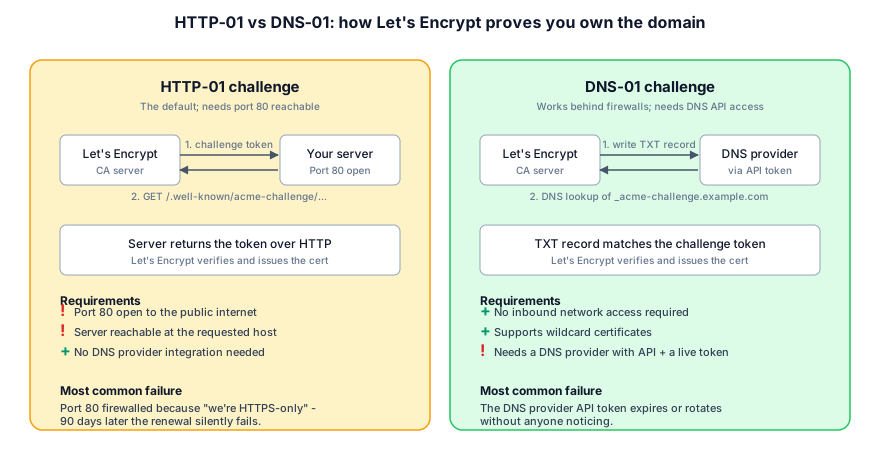
The second-most-common cause is auto-renewal silently failing because port 80 got firewalled. Let’s Encrypt’s HTTP-01 challenge needs port 80 open. Plenty of teams close port 80 thinking “we’re HTTPS-only, who needs it.” Then 90 days later the renewal can’t complete and the cert expires. If you use HTTP-01, keep port 80 open and configured to redirect to HTTPS, not to block it. If you can switch to DNS-01 validation, that sidesteps the problem entirely. And once validation reuse drops to 10 days in 2029, HTTP-01 will need port 80 reachable on more or less every renewal, so there’s a good reason to move sooner.
And one more thing: when you set up monitoring, write down somewhere (a runbook or the README of your infrastructure repo) which certificates are managed by which system. Future you, debugging at 2am on a Saturday, will thank present you for the five minutes it took.
Renewal-failure alerts fire more often now
Double the renewals and you double the chances one of them breaks. A hostname that produced a single renewal event in 2025 produces two this year, and around four from March 2027. Twenty hostnames, then: eighty renewal events a year, each with its own small odds of an expired DNS API token or a reload that never ran.
Two things help. Move whatever you still renew by hand onto ACME, because that’s the one that eventually gets missed. DigiCert, Sectigo and GlobalSign all support ACME these days, so paying a commercial CA no longer means doing the renewal yourself.
And when an alert does fire, resist the urge to force-renew and get on with your day. Find out why the automated path didn’t run. It won’t run next month either, and the manual fix buys you less breathing room every year.
FAQ
How often should SSL certificates be checked? Daily. Certificates change infrequently, so checking every 30 seconds adds noise without value. PingPing runs SSL checks once a day, which still catches every expiration with weeks of lead time. By contrast, uptime monitoring needs 30-second intervals because servers can go down at any moment.
How many days before SSL expires should I renew? For automated renewals (Let’s Encrypt and similar), 3 days of buffer is plenty. Your ACME client should have renewed around day 60 of a 90-day certificate, so the alert is there to tell you it didn’t. For manual renewals through a commercial CA, give yourself at least 14 days to request, validate, install, and test. And revisit the number when your certificate lifetimes change, rather than leaving one setting in place forever.
How do the 200-day and 47-day certificate limits change my expiry alerts? CA/Browser Forum ballot SC-081v3 capped public TLS certificates at 200 days on March 15, 2026, drops that to 100 days on March 15, 2027, and to 47 days on March 15, 2029. Shorter certificates mean more renewals, and the alert threshold has to shrink along with them. Fourteen days of warning on a 47-day certificate fires while a third of its life is still left, which is how alerts start getting ignored. Use 14 days for the 199-day certificates commercial CAs issue today, 7 days once 100-day certificates land, and 3 or 1 day in the 47-day era.
Can I monitor SSL certificates for free? A handful of tools offer limited free SSL monitoring. PingPing includes SSL certificate expiry monitoring on every paid plan starting at €6/month, with no SSL add-on fee, plus uptime monitoring, response time tracking, and status pages bundled in. Some competitors gate SSL behind a higher tier - see how PingPing compares to Pingdom for the price-per-feature math.
What happens if I miss the SSL expiration alert? Your certificate expires and browsers start showing a full-screen “Your connection is not private” warning to every visitor. API integrations that validate SSL (payment webhooks, third-party syncs) stop working. The real cost of website downtime compounds quickly. This is why multiple notification channels matter.
Does SSL monitoring work for internal certificates? PingPing monitors any HTTPS endpoint reachable from the public internet. Truly internal certificates (behind a VPN) aren’t reachable, so they’re outside the scope of a SaaS monitoring tool. For everything publicly accessible (which is most production traffic), PingPing handles it.
Where to go next
If you want the full picture of what SSL monitoring covers (chain validation, protocol checks, tool comparisons), read the SSL certificate monitoring pillar guide. It’s the deep-dive this tutorial sits under.
Never miss an expiry
PingPing checks your SSL certificates daily and alerts you 14, 7, 3, or 1 day before expiry - so you can renew before browsers start blocking your visitors.
Related guides
SSL certificate monitoring
The deep-dive covering chain validation, protocol checks, tool comparisons, and full configuration guidance.
What is uptime monitoring?
SSL monitoring covers cert validity; uptime monitoring covers whether the server responds at all - you need both.
What happens when your SSL certificate expires
What actually breaks the moment a certificate lapses, and how long the SEO damage takes to recover.